01 · Dashboards
Managers see the company. Engineers see their week.
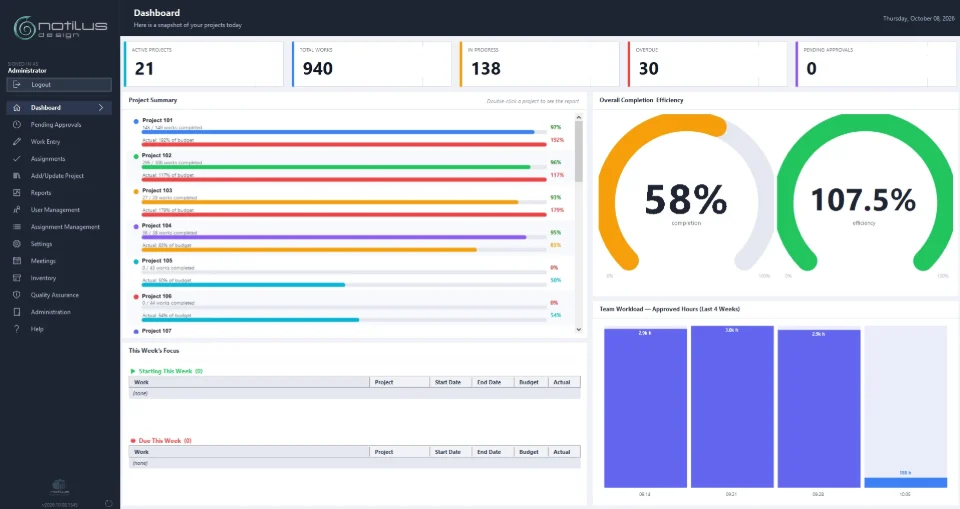
Everyone starts on a dashboard built for their role — KPI cards, project summary, this week's focus and team workload, with no report to run.
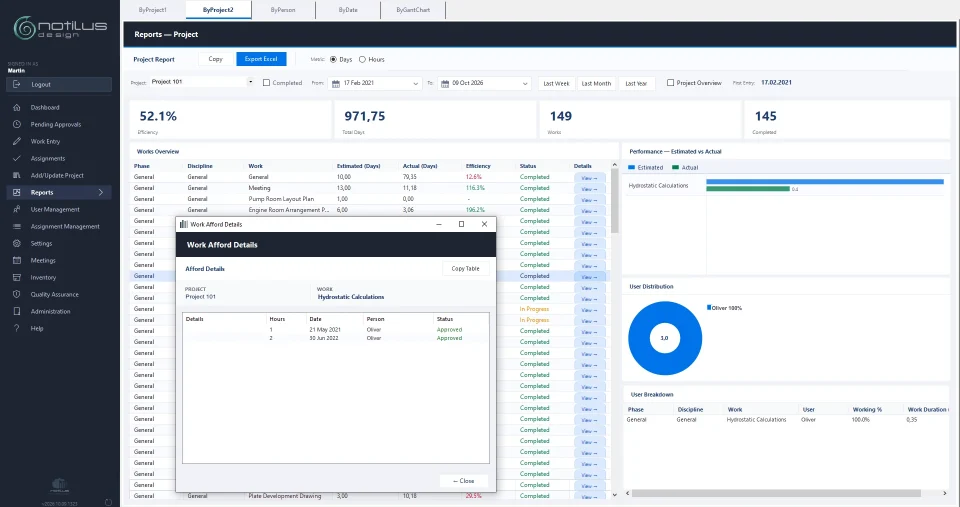
From the drawing list to the monthly progress review — built for marine design offices and the engineers who log the hours.
Everyone starts on a dashboard built for their role — KPI cards, project summary, this week's focus and team workload, with no report to run.
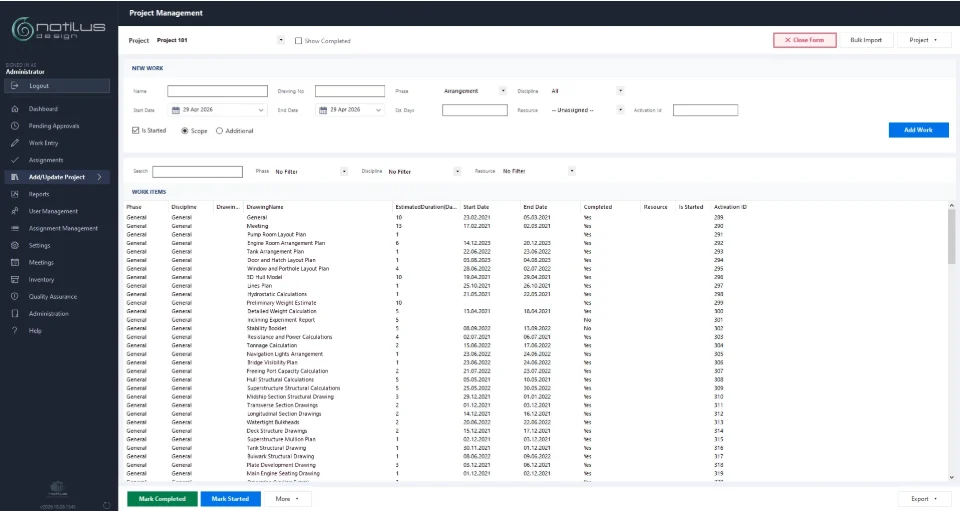
Work items under phases and disciplines, each with a budget in days or hours and planned dates. Bring the drawing list in from Excel.
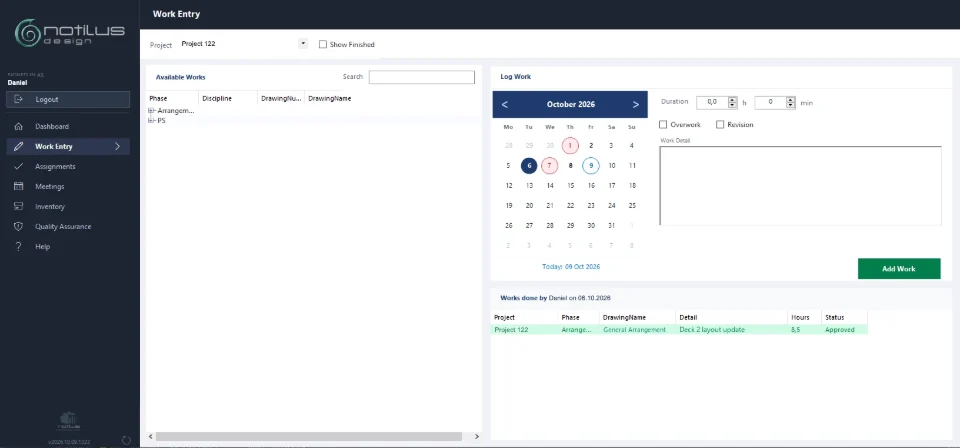
Pick the work item, the date and the hours. The calendar shows complete days at a glance; overwork and revision hours are kept apart.
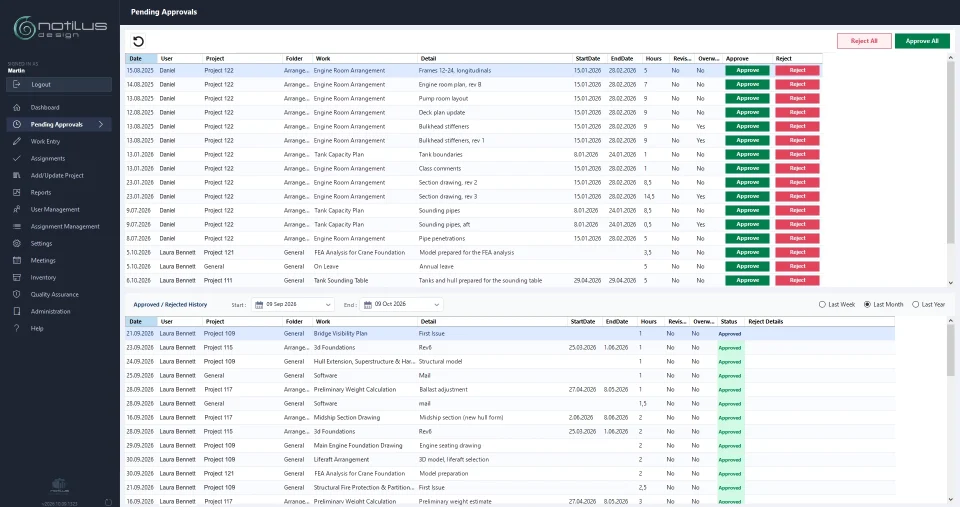
Each entry climbs one level of your reporting hierarchy. A rejection carries its reason, and rejected hours never count.
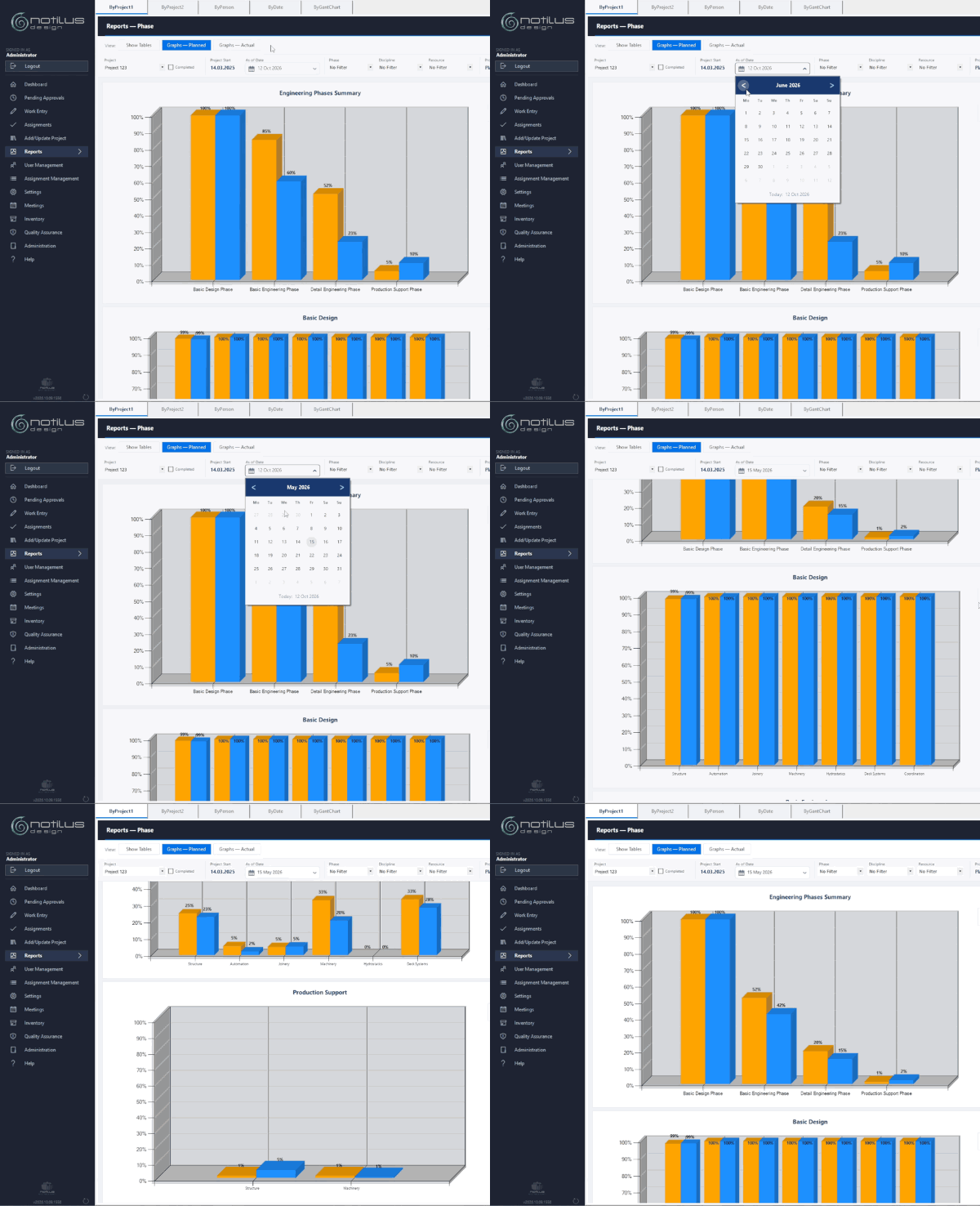
Pick the review date and read planned against actual for every phase and discipline — ready for the monthly progress meeting.
Efficiency per work item and the people behind every hour, for any period — open any line to see who logged what.
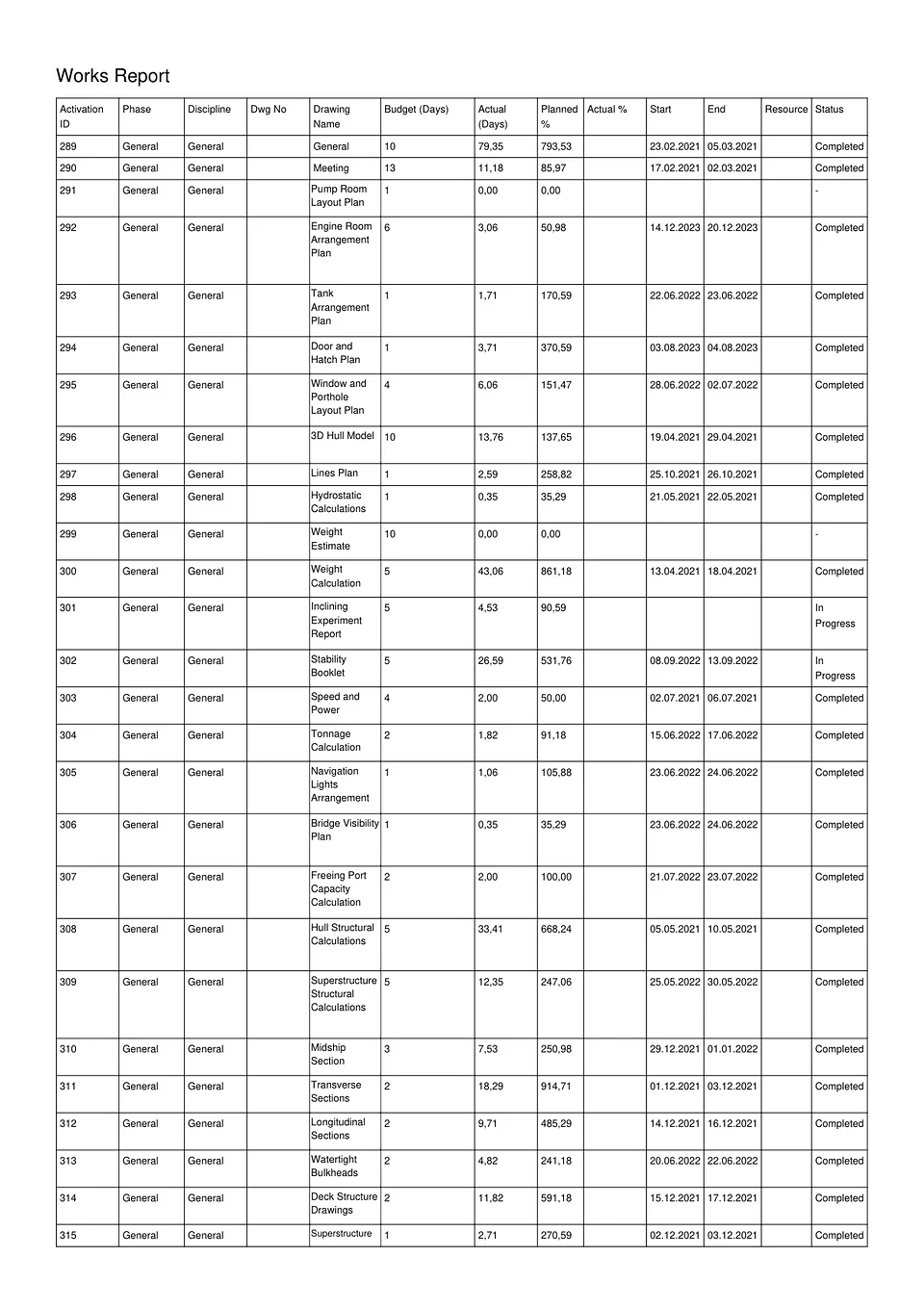
Every report goes straight to your Desktop as a PDF or an Excel file — for the progress meeting, the client or payroll.
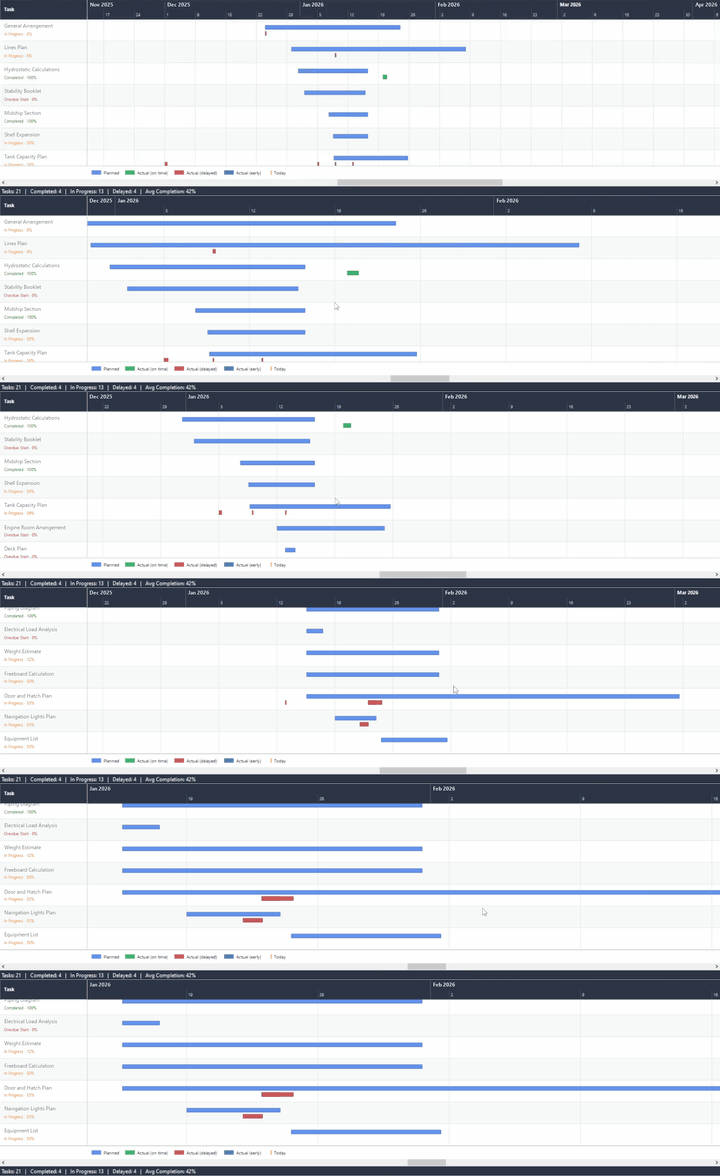
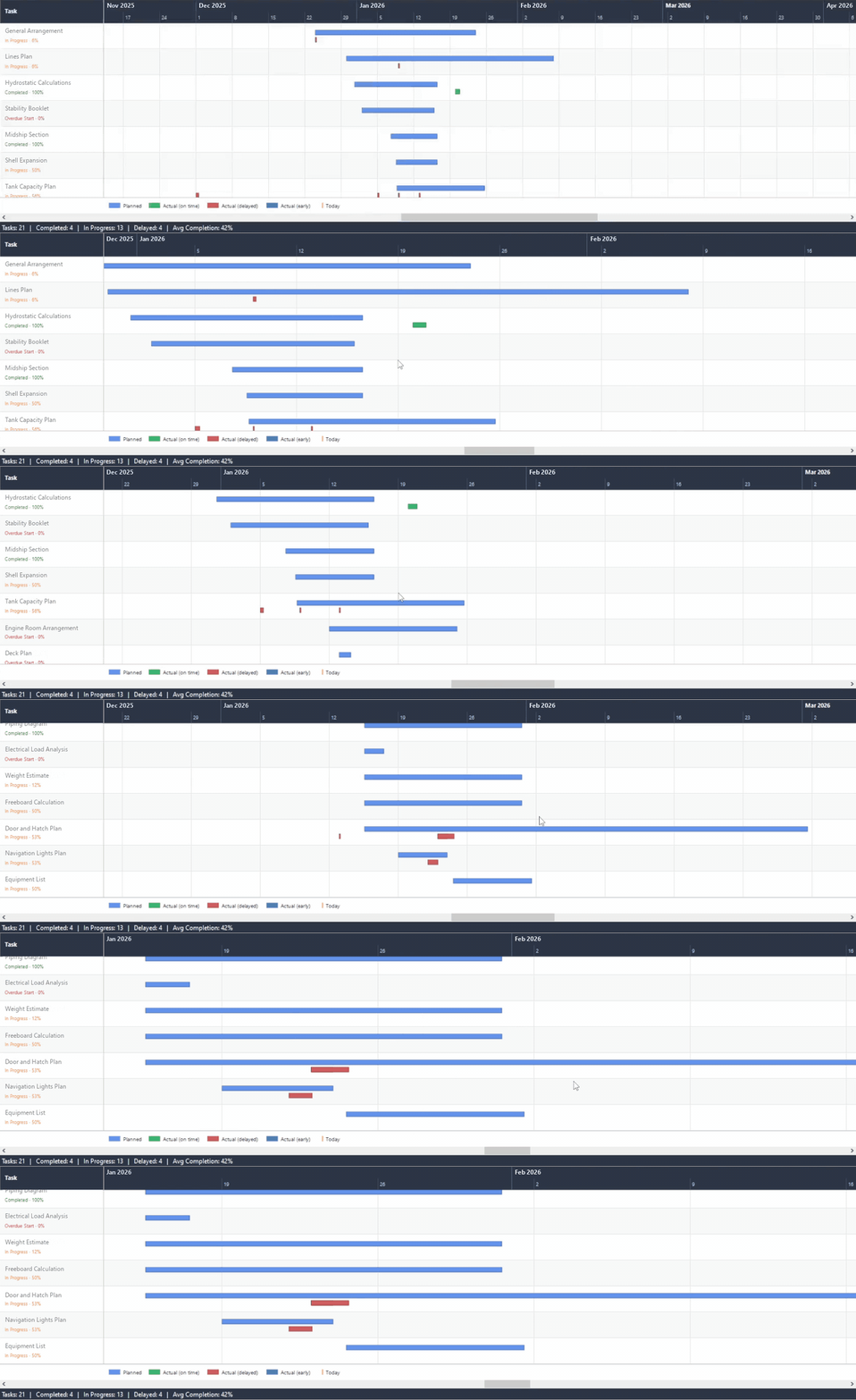
Each planned bar sits above the days hours were logged, so slippage shows before anyone has to ask. Ctrl + wheel to zoom.
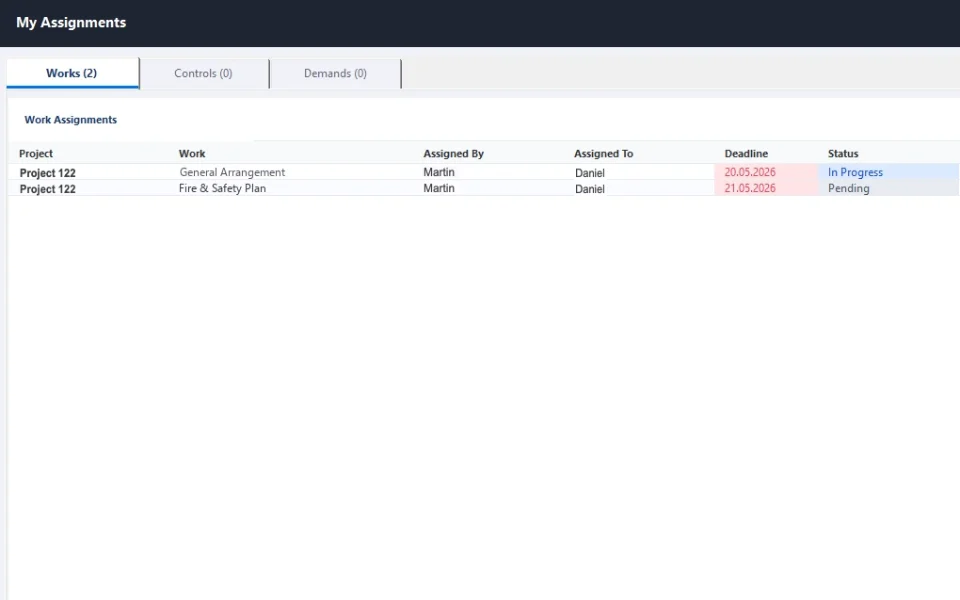
Every assignment carries its own conversation, and the actions agreed in a meeting become assignments with a due date.
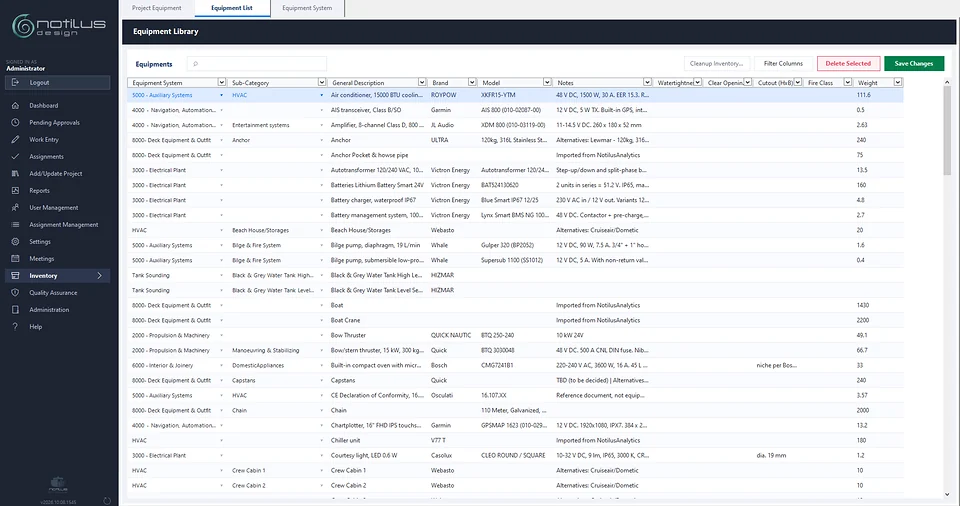
A company equipment library and a list per project, exchanged with Notilus Weight in both directions. Quality checklists sit alongside.
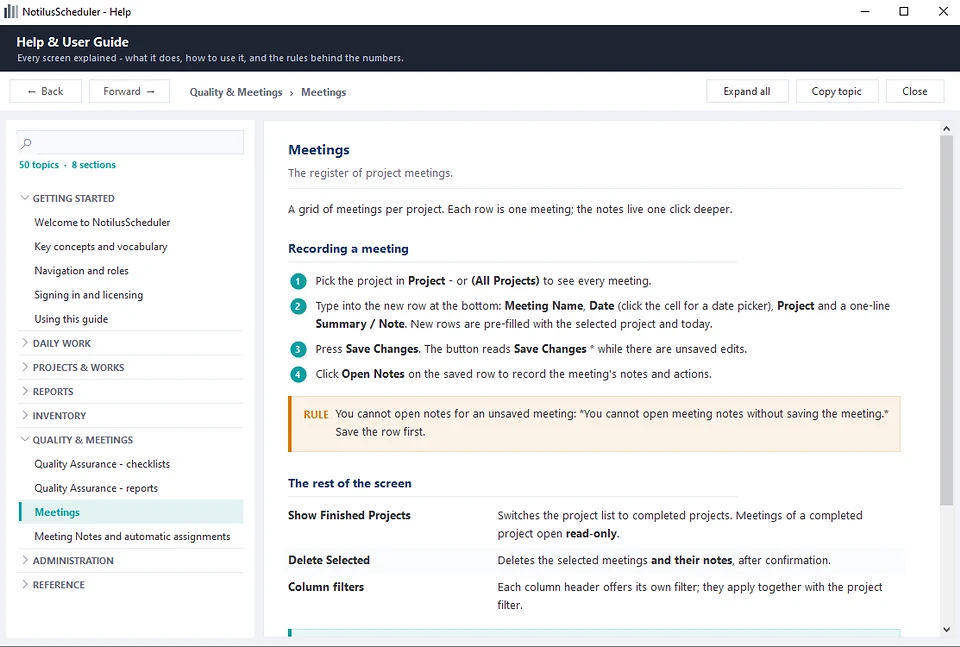
A complete user guide ships inside the application and opens on the topic of the screen you are on — every rule and message explained.
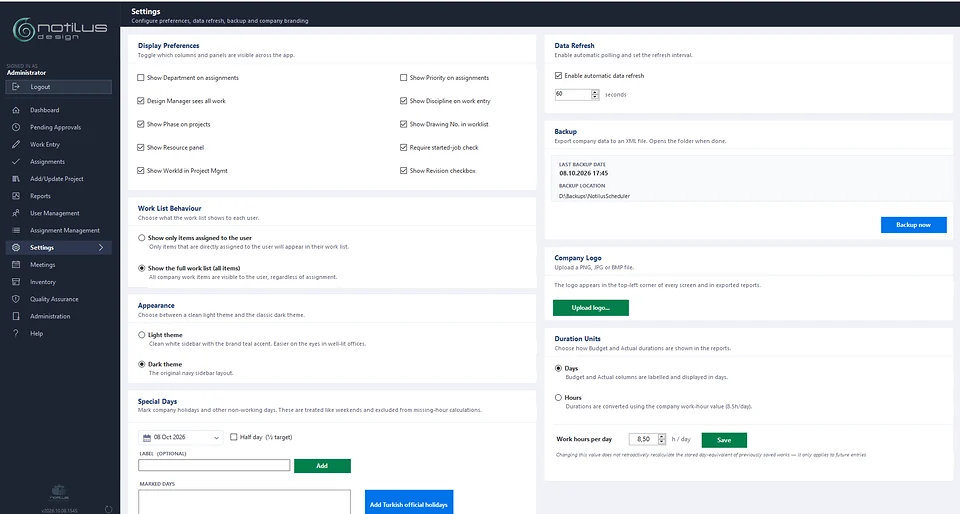
Roles and approval hierarchy, holidays and half-days, days or hours, Excel templates and your company logo — one screen for the company.
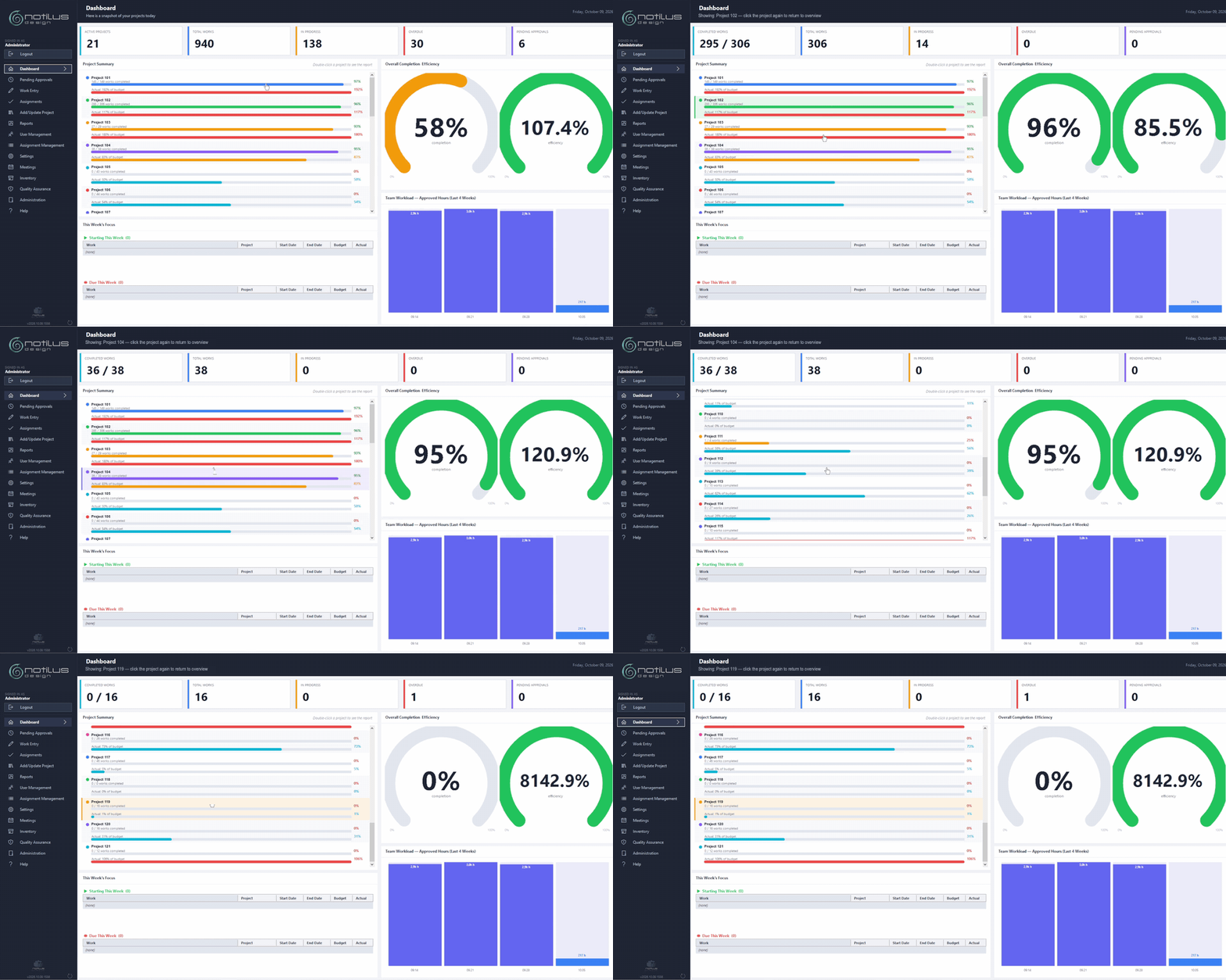
Click a project in the summary and the whole dashboard follows it; click it again to return to the overview.
Each work item's planned bar sits above one small bar for every day hours were logged — so slippage shows before anyone has to ask. Ctrl + mouse wheel zooms from a week to the whole project.
Drawings and tasks under phases and disciplines, each with a budget and planned dates.
Each work item gets a responsible engineer, a deadline and, if needed, a controller.
Engineers log hours against the drawing they worked on, with a line about what they did.
Team leaders and design managers approve or reject — only approved effort counts.
Dashboards, phase progress, budget against actual and a Gantt chart — exported in one click.
A 15-day evaluation license is issued by the engineering team. Tell us about the team size and the projects you'd like to track — we reply within one working day.
Scheduler tracks the work around the engineering model — the hours behind every structural, weight and drawing deliverable.

Project equipment flows both ways — what the inventory knows, the weight estimate knows.
Each drawing pack is a Scheduler work item with a budget, a deadline and an approval owner.
Track the hours per block, per frame group and per drawing release of the steel structure.