Notilus Weight — User Guide
Introduction
Notilus Weight is a weight estimation and weight control application for yacht and ship projects. It keeps a structured weight register — every item on board, organised into categories — and continuously computes the figures naval architects care about: total lightship weight, margins, and the centres of gravity LCG, TCG and VCG.
Beyond the register itself, Notilus Weight manages load cases for stability analysis, keeps a full revision history of your project with restore and compare tools, and integrates with two other Notilus products: Notilus Scheduler (equipment and project planning) and Notilus HydroStab (hydrostatics & stability in Rhino).
Weight register
Item-level weight database per project, grouped by category and subcategory.
Centres of gravity
Live LCG / TCG / VCG per item, per category and for the whole vessel.
Revisions
Full project snapshots — save, restore, and diff any two revisions.
Integrations
Two-way sync with Notilus Scheduler and HydroStab.
Key concepts
- Project (yacht) — every weight item, category, load case and revision belongs to one project. The active project is chosen in the sidebar.
- Category / subcategory — the two-level structure of the register (e.g. Hull, Machinery → Generators).
- Margin — a percentage allowance applied per item; the register reports weight both with and without margin.
- Lightship — the total of the weight register; it is mirrored automatically into every load case as a read-only row.
- Revision — a saved snapshot of the whole project (weights, compartments, load cases) that can be restored or compared later.
Getting Started
Activation
On first launch, Notilus Weight asks for a licence. The activation window shows a machine UID — send it to Notilus Software to receive a trial or purchased licence. Once accepted, the dialog confirms the expiration date. If the application cannot reach the database it reports “Could not connect to the database. Please check your connection and try again.” — check your network and database connection settings.
Choosing a project
Use the PROJECT selector at the top of the sidebar to pick the yacht you want to work on. Switching projects reloads everything — register, charts, load cases and the revision indicator — and re-checks for incoming HydroStab revisions. The application remembers the last opened project and returns to it on the next launch.
Staying up to date
When a newer version is available, an update card appears at the bottom of the sidebar reading “Click to update”. Clicking it installs the update after a confirmation (save your work first — the application restarts). You can also click the Notilus Software v… footer at any time to force an update check; if you are current, it reports “You're using the latest version”.
The Main Window
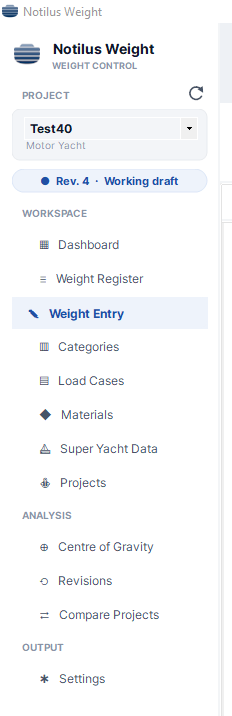
All navigation happens in the left sidebar. It is organised into four groups:
| Group | Entries | Opens |
|---|---|---|
| WORKSPACE | Dashboard · Weight Register · Weight Entry · Categories · Load Cases · Materials · Super Yacht Data · Projects | Dashboard, Weight Register and Weight Entry are in-window pages; the rest open as separate windows. |
| ANALYSIS | Centre of Gravity · Revisions · Compare Projects | CoG shift tool, the Revision Manager, and the in-window project comparison page. |
| OUTPUT | Settings | Application settings (PDF report columns). |
| Footer | Update card · version | Update installer / update check. |
The revision chip
Directly under the project selector, a pill shows the revision you are working from: “● Rev. N · Working draft”, or “● No revision” if the project has never been snapshotted. The number always reflects the active revision stored in the database, so every team member sees the same state.
Refreshing
The small refresh button next to the project selector (“Refresh data”) re-pulls all data for the current project — useful when a colleague, the Scheduler, or HydroStab has changed something while your window was open. Refreshing also re-runs the HydroStab revision check and the update check.
Weight Register
The Weight Register page is the default landing page — a per-category summary of the whole project. The page header shows the project name and category count, plus three actions: ↹ Compare (opens Revision Analysis), ✓ Set Revision (saves a snapshot, see Revisions) and ⇄ Shift CoG.
KPI cards
Light ship weight
Total register weight in tonnes, with the change vs. the previous revision (▲/▼ X t).
With margin
Total including margin allowance, and the margin tonnage itself.
Global margin
Overall margin percentage across the register.
VCG · LCG
Vessel centres of gravity in metres (TCG in the caption).
Register table and distribution chart
The Weight Register card lists one row per category with columns Category, Weight (Kg), Margin, MarginWeight, WeightWithMargin, LCG, TCG, VCG, LCG Moment, TCG Moment, VCG Moment. Next to it, the Weight distribution doughnut shows each category's share of the total, with the vessel total and category count in the centre.
Load Conditions card
A compact view of all weight-based load cases (Weight Type, Weight(Kg), LCG, TCG, VCG). Click Edit cases to open the Load Cases screen.
Filtering the register
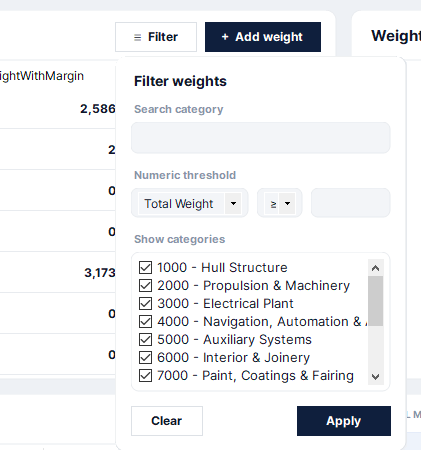
Click ≡ Filter to open the filter popup:
- Search category — live text filter as you type.
- Numeric threshold — pick a column (Total Weight, Total + Margin, Margin Weight, LCG, TCG, VCG), a mode (≥ / ≤) and a value.
- Show categories — tick exactly which categories to display.
Apply filters the table; Clear resets. Clicking outside the popup dismisses it.
Passenger & effects offsets
The PASSENGER & EFFECTS micro-card holds centre-of-gravity offsets (in mm) applied to passenger and personal-effect mass in reports.
Exporting
The EXPORT REPORT card produces PDF or Excel reports of the register — see Reports & Export.
Weight Entry
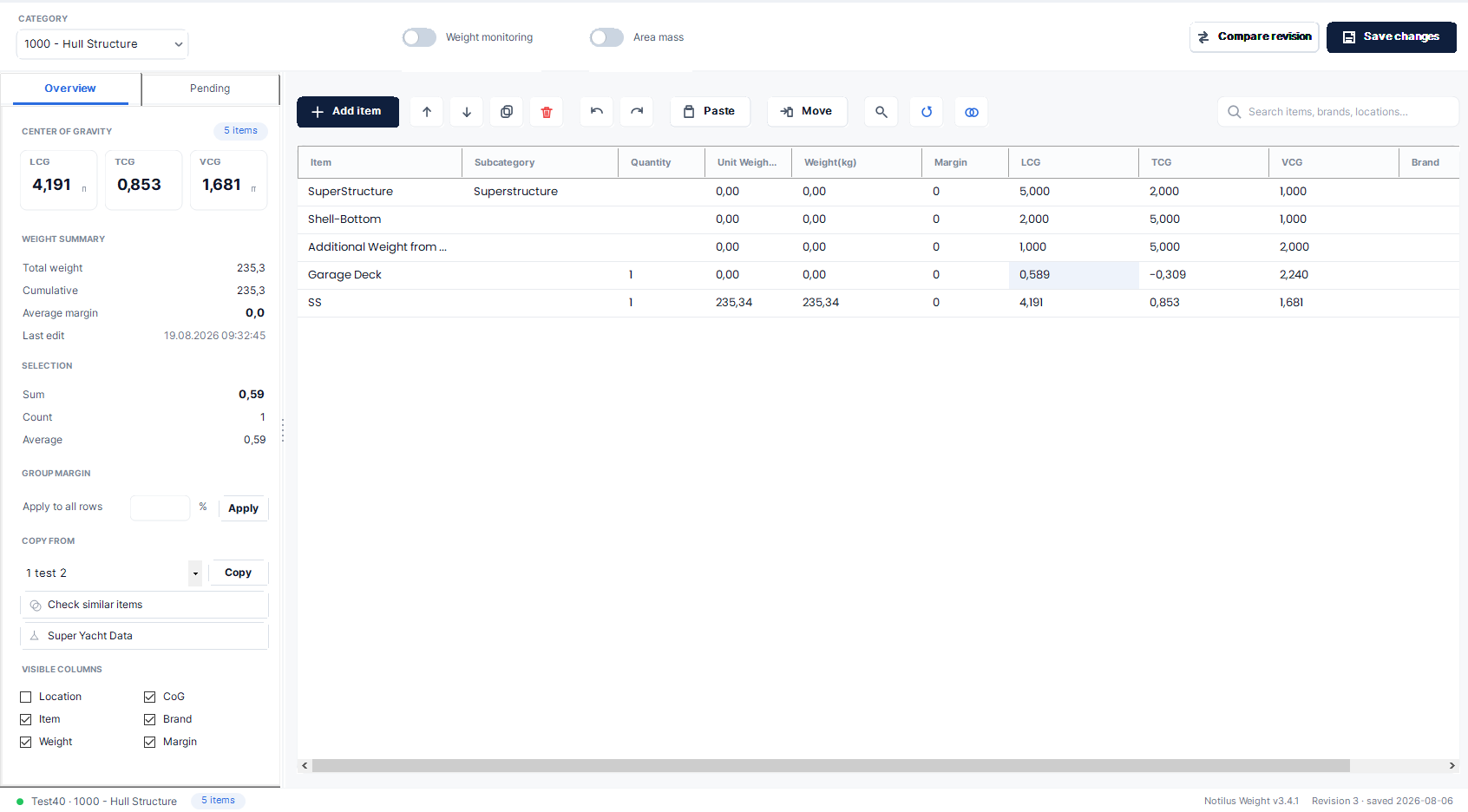
Weight Entry is where you enter and maintain individual weight items. Pick the working category from the header combo (the project comes from the main sidebar). Two mode toggles change the visible columns: Weight monitoring (adds actual/on-board tracking columns) and Area mass (adds area × density columns).
The weight grid
| Column | Description |
|---|---|
Location | Free-text position of the item on board. |
Item | Item name (required). Rows linked to the Scheduler show a small link badge here. |
Subcategory | Optional subcategory within the current category. |
Brand | Manufacturer / brand. |
Quantity | Number of units. |
Unit Weight(kg) | Weight of a single unit. Weight = Quantity × Unit Weight — editing either side keeps the other consistent. |
Weight(kg) | Total item weight (required). |
Margin | Margin percentage for this item. |
LCG / TCG / VCG | Centre of gravity in metres (required). |
Area(m2) / Density(Kg/m2) | Shown in Area mass mode — weight derived from surface area × areal density. |
ActualWeight / OnBoardRatio(%) / Further Estimated Weight | Shown in Weight monitoring mode — track real weights against estimates as the build progresses. |
Toolbar & shortcuts
- + Add item — append a new row.
- ▲ / ▼ — reorder selected rows.
- ⧉ — duplicate selected rows; 🗑 — delete selected rows.
- ↶ Undo (Ctrl+Z) / ↷ Redo (Ctrl+Shift+Z) — undo and redo row deletions and paste batches.
- Paste — append rows from the clipboard (see Pasting data).
- Move — move the selected (saved) items to another category. The change is mirrored to linked Scheduler equipment automatically.
- 🔍 — toggle item-name suggestions while typing.
- ↻ — refresh (pulls changes from the Scheduler).
- 🔗 Link to Scheduler — mark/unmark selected rows for Scheduler sync; applied on Save (see Notilus Scheduler).
- Search box — filters the grid by item, brand or location as you type.
- Use Hydrostatic Tanks for Consumables — shown only for Consumables categories; sources consumable weights from the tank plan.
Overview sidebar
The right-hand sidebar (drag its edge to resize; the width is remembered) has two tabs:
- Overview —
- CENTER OF GRAVITY: live LCG / TCG / VCG of the current category in metres.
- WEIGHT SUMMARY: total weight, cumulative project weight, average margin and last edit time.
- SELECTION: sum / count / average of the numeric cells you currently have selected — a quick calculator without leaving the grid.
- GROUP MARGIN: type a percentage and Apply to set the margin on every row at once.
- COPY FROM: copy items in this category from another project, open Check similar items, or open the Super Yacht Data browser.
- VISIBLE COLUMNS: show/hide Location, CoG, Item, Brand, Weight and Margin columns.
- Pending — incoming items from the Notilus Scheduler awaiting review (see Notilus Scheduler). The tab caption shows the count, e.g. Pending (3).
Pasting data
There are two paste paths:
- Toolbar Paste — appends new rows from tab-separated clipboard data with exactly six columns in this order:
Location, Item, Weight, LCG, TCG, VCG. Ideal for bringing rows over from Excel. - Ctrl+V in the grid — block-pastes into the current selection. A single copied value fills the whole selection. Number parsing is culture-tolerant: both
1.25and1,25are understood. Each paste is one undoable step.
Saving & validation
Press Save changes or Ctrl+S. The button turns red whenever there are unsaved edits. Before writing, the application validates the grid:
- Item, Weight, LCG, TCG and VCG must not be empty.
- Sanity warnings are raised when the category average looks suspicious — LCG of 0, non-zero TCG, VCG of 0, or an individual item left at the default 0 VCG. You can confirm and save anyway.
If rows are marked for Scheduler linking, the push happens as part of the save. Closing the screen with unsaved edits prompts you to save or discard.
Categories
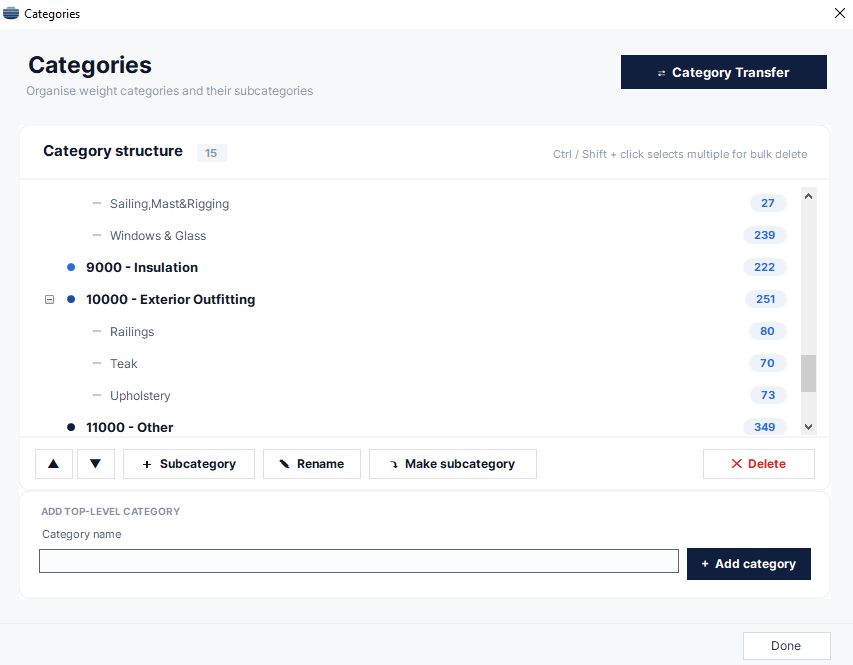
The Categories screen manages the two-level structure of the register. The tree shows every category and subcategory with a badge indicating how many items each contains.
- + Add category — type a name in ADD TOP-LEVEL CATEGORY and add it.
- + Subcategory — add a subcategory under the selected category.
- ✎ Rename — rename the selection; all items follow automatically.
- ⤵ Make subcategory / ⤴ Promote to category — nest a category under another (its items are re-homed to the parent with the subcategory assigned) or lift a subcategory to the top level.
- ✕ Delete — delete the selection. Hold Ctrl or Shift while clicking to select several nodes and delete them in one confirmed step. The confirmation lists exactly which items will be removed.
Category Transfer
⇄ Category Transfer moves every item from one category or subcategory into another. Pick the source and target, review the item list, and confirm. Use it for merging or restructuring large registers.
Load Cases
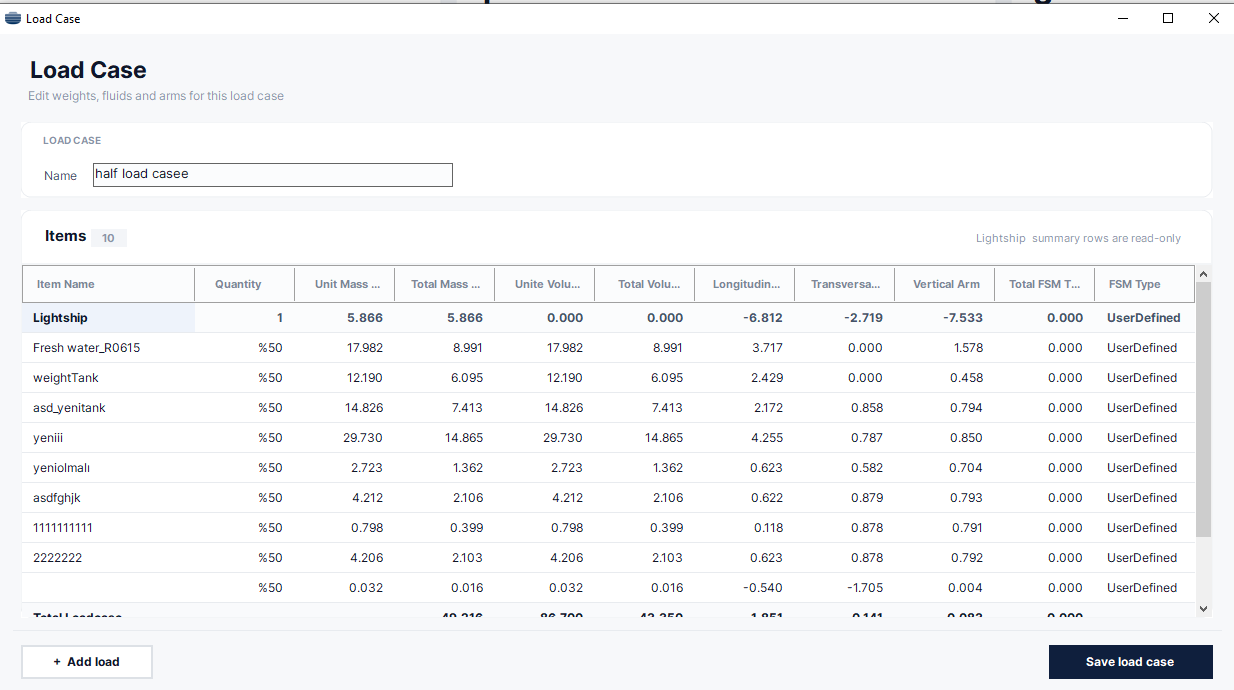
The Load Cases screen lists the weight-based load cases used for stability analysis, with columns Name, Mass Tonne, Longitudinal Arm, Transversal Arm, Vertical Arm. Use + Add load case, ✎ Edit and ✕ Delete to manage them.
The load case editor
Each load case is a grid with columns Item Name, Quantity, Unit Mass Tone, Total Mass Tonne, Unite Volume m³, Total Volume m³, Longitudinal Arm, Transversal Arm, Vertical Arm, Total FSM Tonne, FSM Type. Rows come in three kinds:
| Row kind | Behaviour |
|---|---|
| Lightship | Mirrors the weight register total; quantity fixed at 1; read-only. |
| Tank / compartment | Created automatically from the yacht's compartments. Mass = volume × specific gravity; arms are prefilled from the linked weight item. Free-surface moment is estimated from the compartment box when FSM Type is Max or Actual (the precise geometric value arrives from HydroStab via the load-case sync). |
| Custom | User-entered rows with their own unit mass, volume and arms. FSM Type can also be UserDefined. |
Three summary rows are maintained automatically at the bottom and are never saved as data:
- Total Loadcase — sums of mass, volume and FSM, with mass-weighted mean arms.
- FS correction — the total free-surface moment.
- VCG fluid — the vertical arm corrected for free surface.
Summary rows recalculate as soon as you commit a cell edit in any mass, volume or arm column.
Materials & Projects
Materials
A simple list of material types used across the register. Add a material by name; select a row and ✕ Delete selected to remove one.
Projects
The Projects screen manages your fleet: + New, Edit, Duplicate and Delete, with a search box for large fleets. A new project records:
- IDENTITY — name, yacht type, hull type, hull material, superstructure material (all required).
- PRINCIPAL DIMENSIONS — length overall, length waterline, beam, draught (required) and depth.
- ADDITIONAL DETAILS — deck number, max passengers, max crew, gross tonnage, block count, frame spacing, mastori.
Tick “Add weight items from default yacht” to seed the new project with a standard category and item structure instead of starting from an empty register.
Revisions
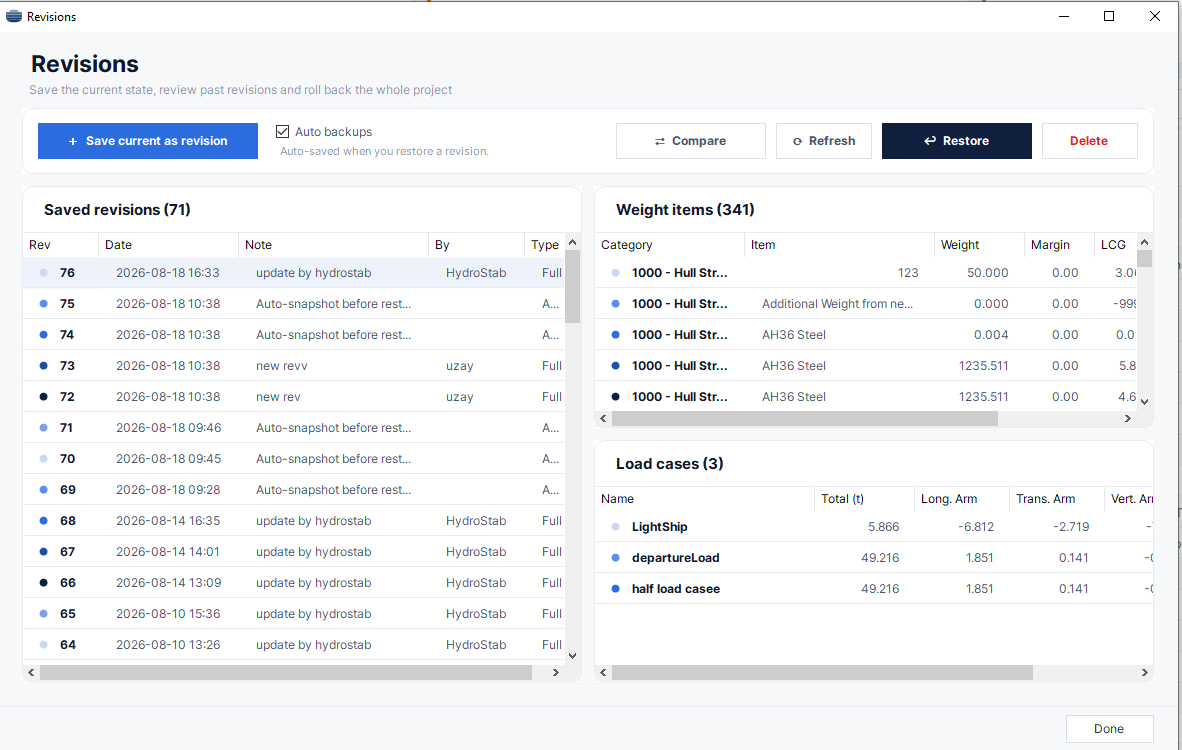
A revision is a complete snapshot of the project — weight items, compartments and load cases — stored with a number, date, author and note. Revisions give you a safe history: you can review, restore or compare any saved state.
Saving a revision
On the Weight Register page, click ✓ Set Revision. If you are already working on a revision, choose between “Update Revision N (keep number)” and “Save as new Revision M”, then enter an optional note. The revision chip in the sidebar updates immediately.
The Revision Manager
Open Revisions from the ANALYSIS group. The left list shows all saved revisions (Rev, Date, Note, By, Type); selecting one previews its Weight items and Load cases on the right. Toolbar actions: + Save current as revision, ⇄ Compare, ⟳ Refresh, ↩ Restore and Delete.
The Auto backups checkbox controls whether the current working state is backed up automatically before a restore. Auto backups appear in the list with type Auto.
Restoring a revision
Select a revision and click ↩ Restore. The confirmation dialog spells out exactly what will happen:
- With Auto backups on, your current working data is snapshotted first, so a restore is always reversible.
- Full revisions replace the live data set — weight items, compartments and load cases that are not in the revision are deleted from the live data.
- Weights-only revisions (e.g. pushed by HydroStab) restore only the weight items they cover; your current compartments and load cases are kept untouched.
After the restore completes, the main screen refreshes automatically when you close the window.
Comparing revisions
Compare Revisions shows a git-style diff between any two saved revisions. Pick the FROM and TO revisions (swap with one click) and press Compare. Summary chips report + Added, ~ Changed and − Removed counts per section, plus the total weight and LCG / TCG / VCG deltas. The difference list covers three sections:
- Weights — category, item, brand, location, weight, margin, CoG, area/density and monitoring fields.
- Load Cases — name, source, totals, volume and arms.
- Compartments — fluid, volume, bounds and permeabilities.
Revision Analysis
↹ Compare on the Weight Register page opens Revision Analysis — a read-only viewer for a single saved revision: its date, note and total margin, a weight distribution chart with top categories, the per-category register table, and the load conditions table. From here you can also ↩ Restore this revision or delete it.
Centre of Gravity (Shift CoG)
The Shift CoG tool applies a uniform offset to every item's centre of gravity along one axis — typically after moving the coordinate origin or correcting a systematic reference error.
- Choose the TARGET AXIS: Longitudinal (LCG), Transverse (TCG) or Vertical (VCG).
- Enter the SHIFT VALUE in metres. Positive values move the CoG forward / to starboard / up; negative values reverse it.
- Confirm — the shift is applied to every weight item in the project, across all categories.
Compare Projects
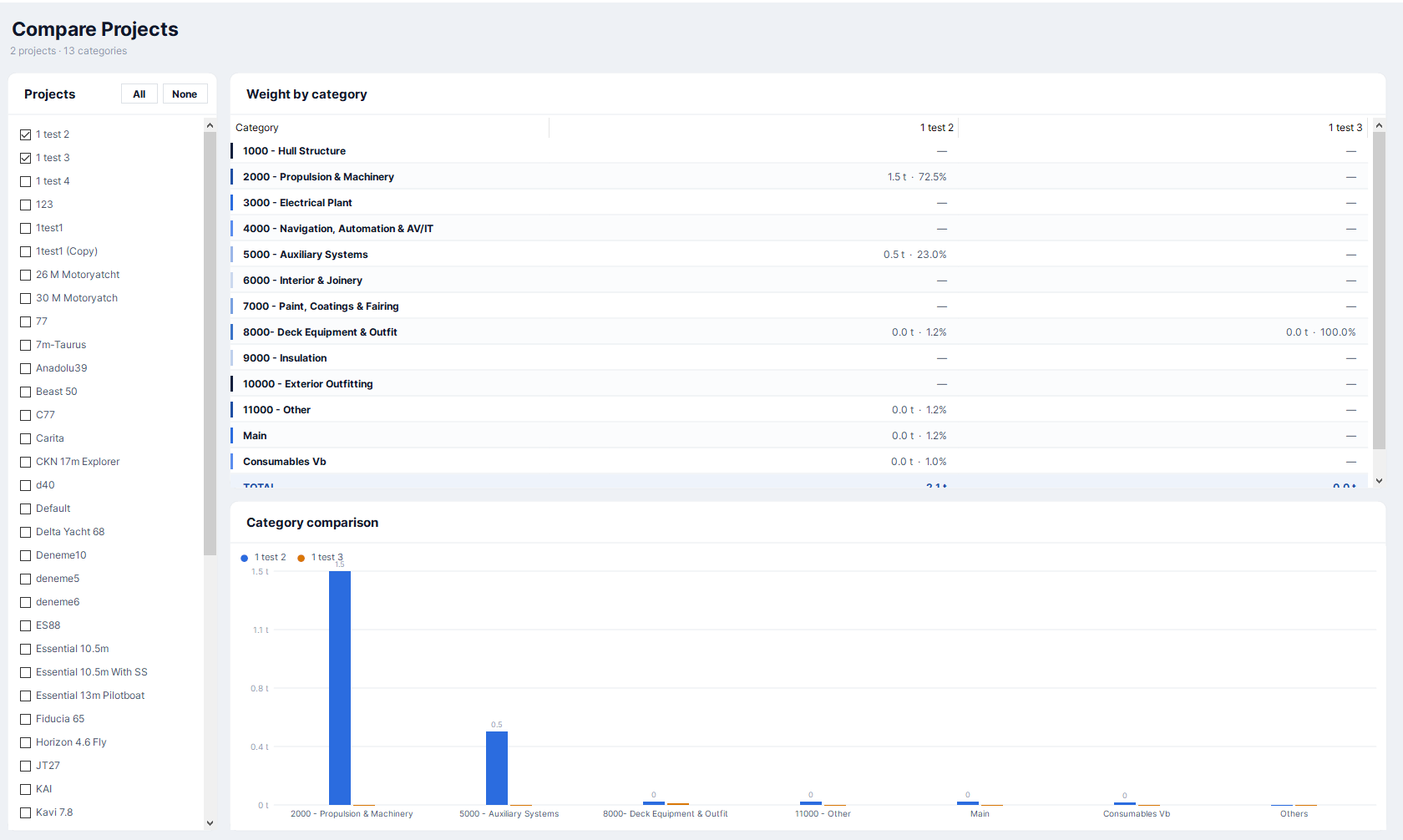
The Compare Projects page compares the weight breakdown of two or more projects side by side. Tick the projects in the left card (All / None helpers included) and review:
- Category comparison — tonnes and percentage per category for each selected project, with (Uncategorized) and Others buckets.
- Weight by category — a grouped bar chart of the same data.
Useful for benchmarking a new design against completed vessels of similar size.
Reference Data Tools
Super Yacht Data
A browsable database of reference super yacht records — dimensions, materials, tonnage and performance (length, beam, draught, decks, guests, crew, gross/net tonnage, max speed, fuel capacity, hull material, superstructure, hull type, vessel type, class, designers). Filter by category or numeric range and sort by clicking column headers.
Check Similar Items
Opened from the Weight Entry sidebar, this tool finds matching weight items on reference yachts filtered by length range, hull material, hull type and vessel type (it defaults to yachts within ±5 m of your current project's length). Select a record and Bring selected to copy its name, weight and brand straight into your weight grid — a fast way to estimate items you have no supplier data for yet.
Notilus Scheduler Integration
Notilus Weight exchanges data with Notilus Scheduler in both directions, so equipment defined during project planning and weights managed here stay consistent without double entry.
Incoming: pending items
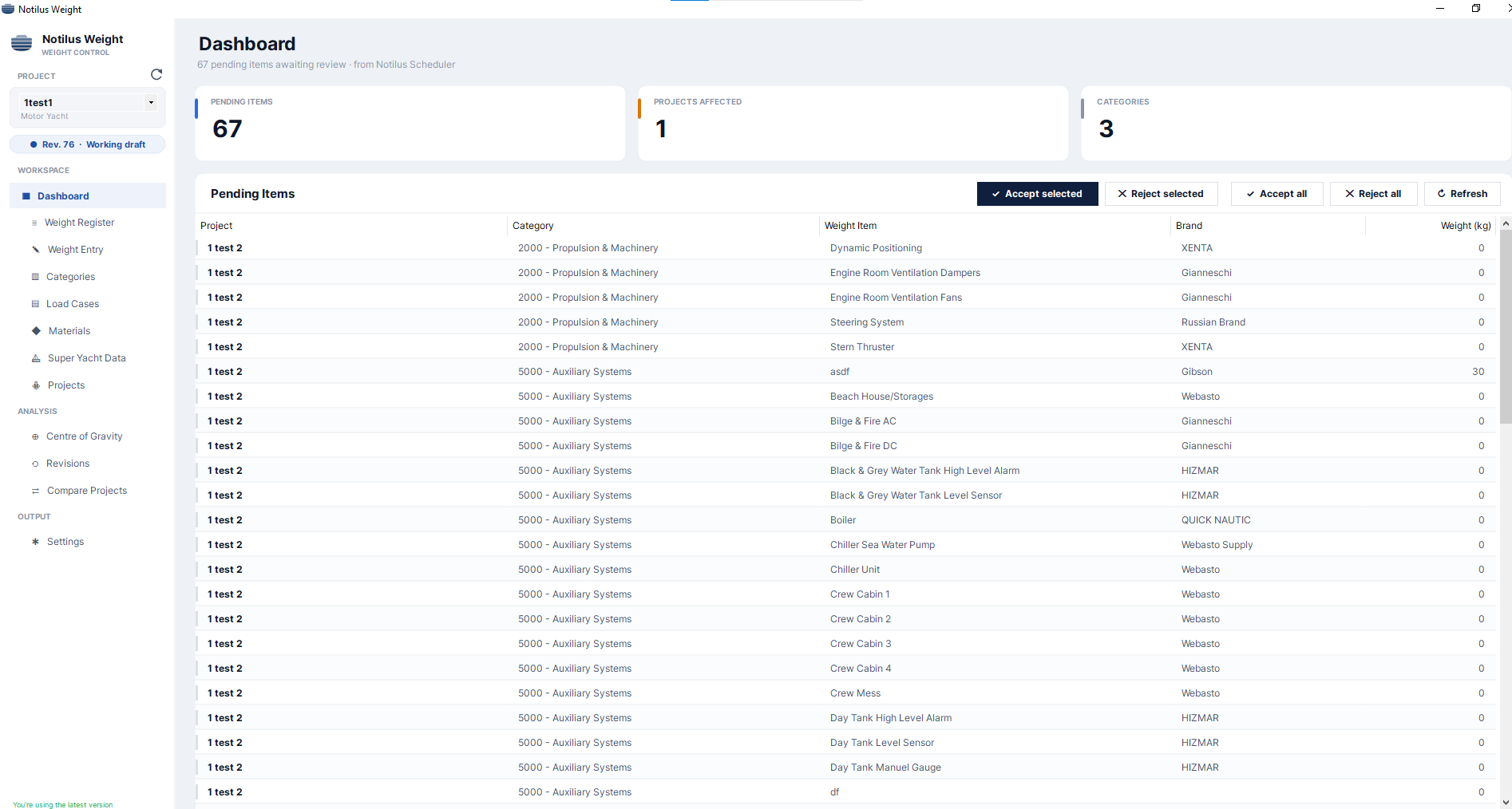
Equipment created in the Scheduler arrives in Weight as pending items. They appear in two places:
- The Dashboard page — a company-wide inbox across all projects, with KPI cards (PENDING ITEMS / PROJECTS AFFECTED / CATEGORIES) and bulk actions ✓ Accept selected, ✕ Reject selected, ✓ Accept all, ✕ Reject all.
- The Pending tab in Weight Entry — the same queue scoped to the open project.
Accepting opens the Accept pending items dialog: for each incoming Scheduler category you choose the Weight category it should map to. The items are accepted into the mapped categories and the mapping is written back to the Scheduler so both systems agree. Rejecting is permanent and asks for confirmation.
Outgoing: linking rows to the Scheduler
In Weight Entry, select rows and click the 🔗 Link to Scheduler toolbar button to mark them (marked rows show a link badge on the Item cell). Nothing is sent immediately — on the next Save, marked rows are pushed to the Scheduler as equipment, unmarked rows are unlinked, and Item/Brand edits on already-linked rows propagate automatically.
Moving linked items to another category mirrors the change to the Scheduler in the background. Deleting linked rows asks whether the related Scheduler items should be removed too (the equipment definition itself is kept either way).
Notilus HydroStab Integration
Notilus HydroStab (the hydrostatics & stability plug-in for Rhino) shares the same project database. When HydroStab pushes updated weights — for example after moving points in the 3D model — it creates a new revision, and Notilus Weight detects it on startup, on project change, or on refresh.
Reviewing a HydroStab revision
If the pushed data differs from your current weights, the “New revision from HydroStab” screen opens showing the differences. Tick the individual weight changes you want to apply — unchecked items keep their current values — then choose:
- Switch to this revision — your current state is backed up automatically, the checked changes are applied, and the revision chip moves to the new revision.
- Keep current weights — the pushed values are rolled back to the previous baseline and you continue unchanged.
One decision per team
The Switch/Keep decision is recorded per revision for the whole team. Colleagues opening the project afterwards see the same diff read-only, with a banner explaining who reviewed the change and when — no action is required from them and the question is never asked twice.
Reports & Export
The EXPORT REPORT card on the Weight Register page generates project reports:
- Choose PDF or Excel with the segmented toggle.
- Tick Detailed to include item-level rows instead of category summaries only.
- Click ↧ Export. The file is saved to your Desktop and named
<Yacht>_WeightCalculation_dd.MM.yyyy.pdfor<Yacht>_WeightReport_dd.MM.yyyy.xlsx.
Reports include the project header with revision number, global margin and personal-effects total, the weight distribution chart, per-category tables with an average LCG / TCG / VCG row, and a LOAD CONDITIONS section. The Excel report adds a Summary sheet.
Which columns appear in the PDF is configurable — see Settings.
Settings
The Settings screen currently controls the PDF report columns — choose which of the ten available columns appear in exported PDF reports, grouped as:
- ITEM DETAILS — Item, Brand, Location, Quantity.
- WEIGHT & DISPLAY — Unit weight, Weight, Margin, Weight with margin, Area density.
- COORDINATES — LCG, TCG, VCG.
Select all and Clear all helpers are provided, with a live “N of 10” counter.
Units & Conventions
| Quantity | Unit | Where |
|---|---|---|
| Item weight, unit weight | kg | Weight Entry grid, register table |
| Totals / KPIs / load cases | tonnes | Weight Register cards, load case grids, comparisons |
| Centres of gravity, arms | m | Everywhere (grid, KPI cards, Shift CoG, load cases) |
| Passenger & effects CoG offsets | mm | Weight Register micro-card |
| Tank volume | m³ | Load case editor |
| Margin | % | Per item and globally |
| Area / density | m² / kg/m² | Area-mass mode |
Numbers are displayed with a dot decimal separator, but input fields and pasted data accept both . and , as the decimal mark.
Sign convention: positive LCG is forward, positive TCG is to starboard, positive VCG is up (as used by the Shift CoG tool).
Keyboard Shortcuts
| Shortcut | Action | Where |
|---|---|---|
| Ctrl+S | Save changes | Weight Entry |
| Ctrl+Z | Undo last delete / paste | Weight Entry |
| Ctrl+Shift+Z | Redo | Weight Entry |
| Ctrl+V | Block paste into selection | Weight Entry grid |
| Ctrl/Shift + click | Multi-select tree nodes | Categories |
| Enter | Apply group margin | Weight Entry sidebar |
FAQ & Troubleshooting
Some of my items disappeared from a category — where did they go?
Common causes: a revision restore replaced the live data (check the Revision Manager — an auto backup of your previous state usually exists); the items arrived from the Scheduler and are sitting in the Pending tab; or the category was renamed/merged — see Categories.
The register table and the doughnut chart don't match.
By design — table filters never affect the distribution chart, which always shows the full project.
Why can't I edit the LightShip load case?
It is generated from the weight register and stays in sync automatically. Change the register; the LightShip row follows.
A teammate saw the HydroStab revision prompt but I didn't.
Expected — the Switch/Keep decision is made once per revision for the whole team. You'll see a read-only summary of who decided what, and you continue from the resulting state.
My pasted numbers came in wrong.
The toolbar Paste expects exactly six tab-separated columns (Location, Item, Weight, LCG, TCG, VCG). For anything else, copy values into matching cells with Ctrl+V instead. Both comma and dot decimals are accepted.
Where do exported reports go?
Always to your Desktop; the confirmation dialog shows the full file name.
The application says my licence has ended.
Contact info@notilussoftware.com with your UID (shown in the activation window) to renew.